Note
Only authorized users with appropriate company permissions and accesses can use the export and import features.
ActivityHD provides wizards to help you with exporting and importing data. Files are exported in XML format, a format which preserves the important details of your records as you move them. You can use export and import to move data from one ActivityHD company to another. You can import data from an outside source into ActivityHD. You can use export and import to move data between ActivityHD and third party programs.
The export and import features are available nearly everywhere you find data in ActivityHD - which is everywhere! You can export all records in a folder, selected records in the HD view, or a single record open in its native editor.
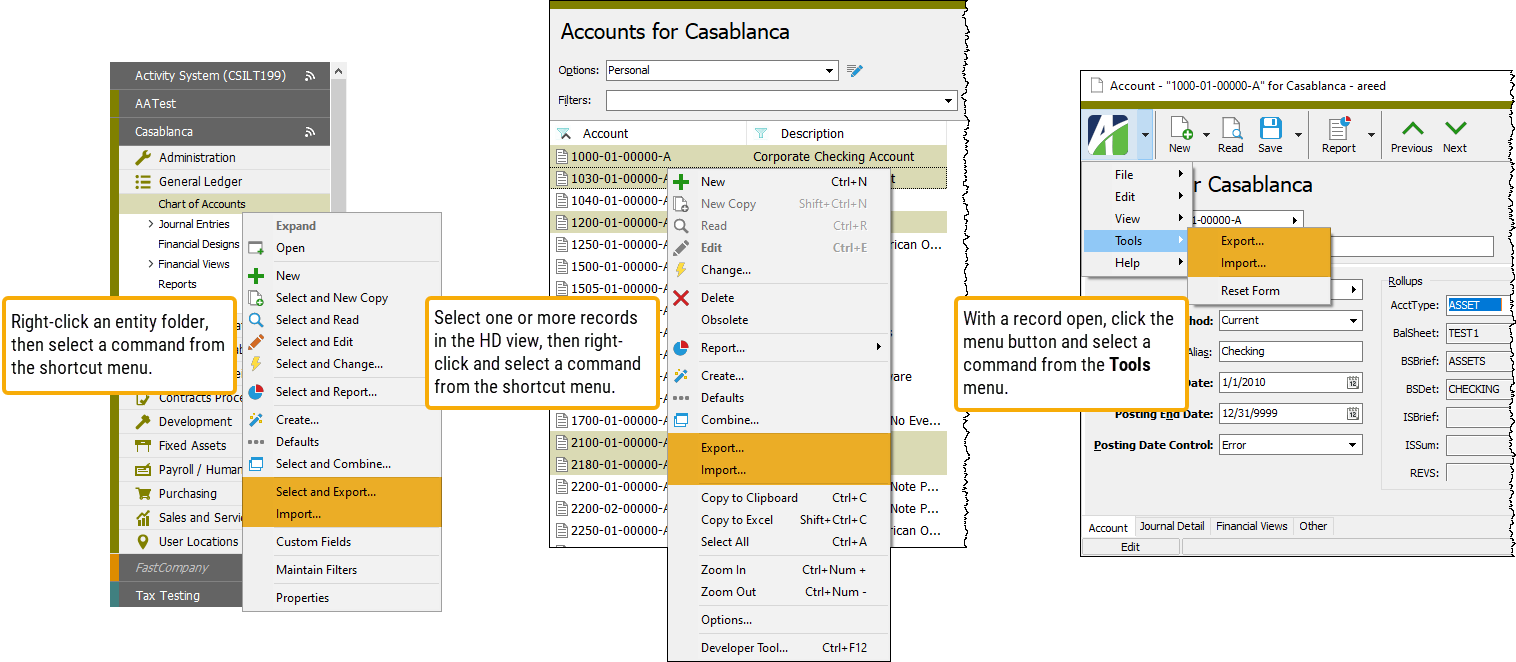
 Export data from
 Export data from ActivityHD
- In the Navigation pane, highlight the entity folder with the data you want to export.
- Start the export wizard.
- To export all or a filtered subset of records:
- Right-click the entity folder and select Select and Export from the shortcut menu.
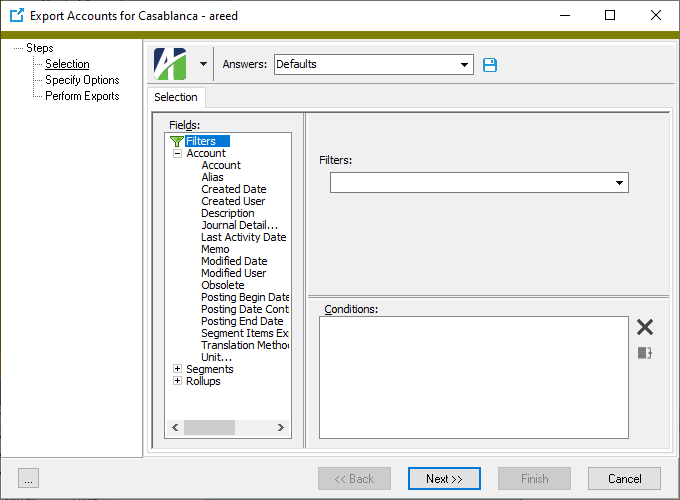
- On the Selection tab, define any filters to apply to the data.
- Click Next >>.
- Right-click the entity folder and select Select and Export from the shortcut menu.
- To export specifically selected records:
- In the HD view, select the records to include in the export. You can use Ctrl and/or Shift selection to select multiple records.
- Right-click and select Export from the shortcut menu.
- To export a single record:
- In the HD view, double-click the record you want to export to open it in its native editor.
- Select
 > Tools > Export.
- To export all or a filtered subset of records:
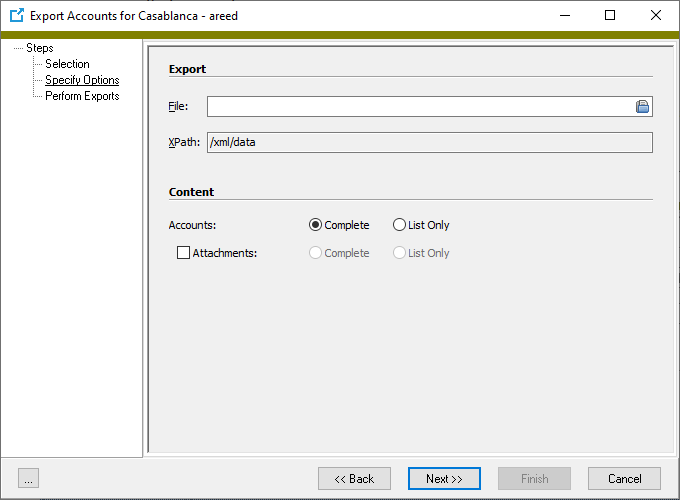
- In the File field, enter or browse to the path and file name for the export file.
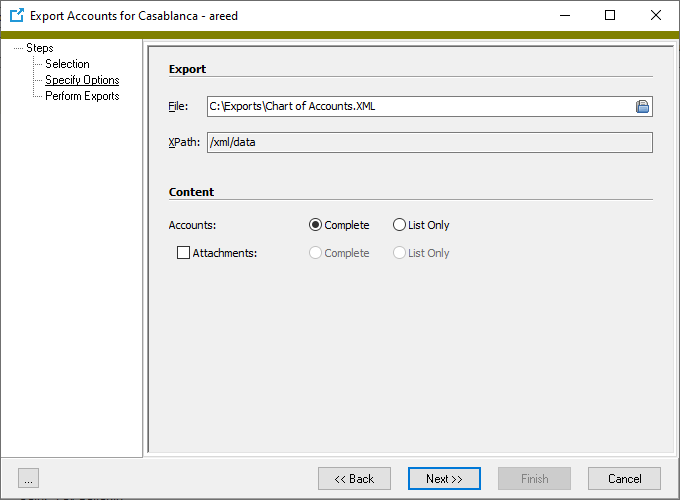
- The Content section prompts you for the entity information to export. Select the option that applies to you. Your options are:
- Complete. Exports the data for the selected records.
- List Only. Exports only a list of the selected records.
- If attachments are enabled for your system, the Attachments checkbox is enabled. Mark the checkbox if you want to include attachments in the export, then select the attachment information to export. Your options are:
- Complete. Exports the actual attachments on the selected records.
- List Only. Exports only a list of the attachments on the selected records.
- Click Next >>. ActivityHD prompts you to confirm that you want to perform the export.
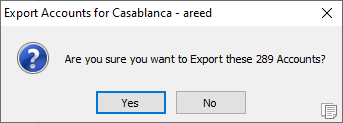
- Click Yes. The data is exported to the destination file.
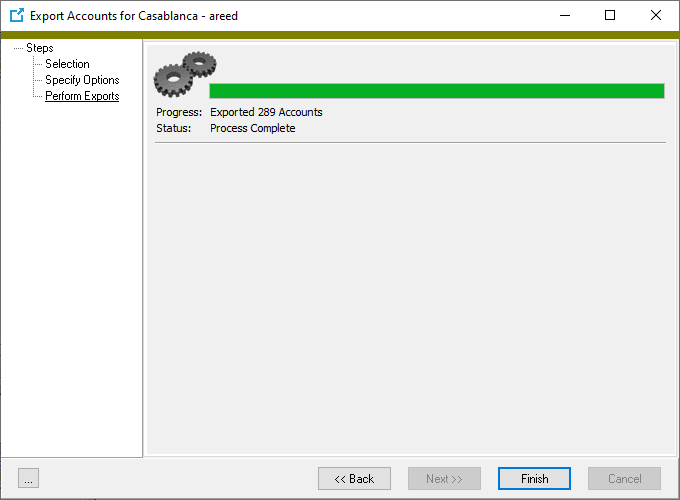
- Click Finish.
Note
For data consistency reasons, AP payment data can be exported from, but not imported to ActivityHD.
Import data from a folder
When you import records using the Import action from an entity folder, you specify an import file, confirm that you want to import, and proceed with importing. Issues are reported in the wizard when the import concludes. Importing from an entity edit window provides an interactive process where the user controls import progress and has the opportunity to understand and diagnose import issues and errors as they occur.
- In the Navigation pane, highlight the entity folder to import records into.
- Right-click and select Import from the shortcut menu. The import wizard starts.
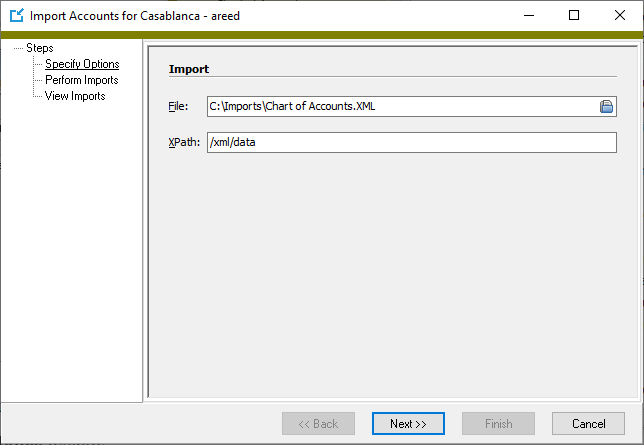
- In the File field, click
 to open the Browse window.
 - Navigate to and highlight the file to import.
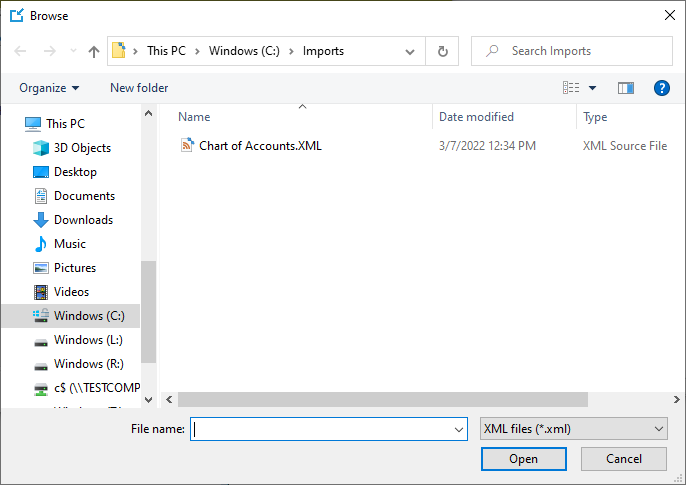
- Click Open. The path and file name load in the wizard.
- Click Next >>. ActivityHD prompts you to confirm your action.
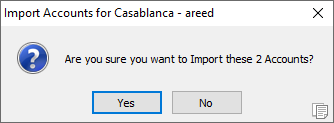
- Click Yes.
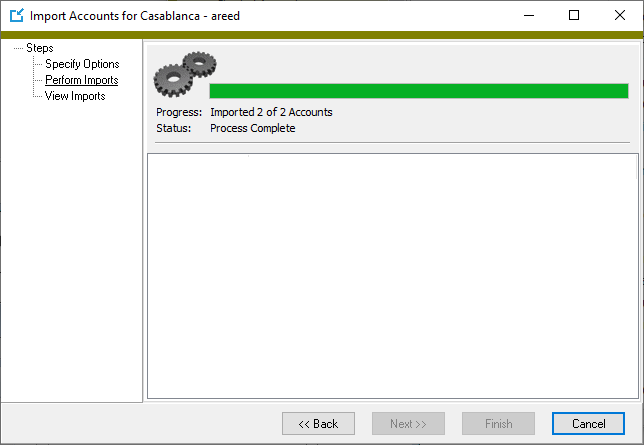
- When the import completes, click Finish.
Import data from an edit window
In the past, only the first record in an import file was imported when using the Import action from an edit window. The improved Import feature (introduced in version 8.18-0) removes this limitation and is interactive to make it easier for users to understand and diagnose any issues or errors that occur while importing. This is especially useful when using automation to modify data records.
To perform an import from an edit window:
- Open a record of the entity type you want to import records for.
- From the menu, select > Tools > Import. The Import dialog for the entity opens.
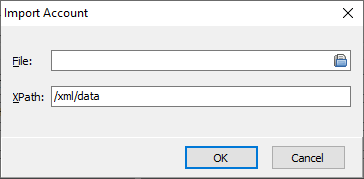
- In the File field, click to open the Browse window.
- Navigate to and highlight the file to import.
- Click Open. The path and file name load in the dialog.
- Click OK. The Import progress dialog opens.
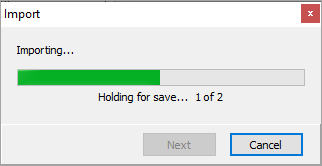
- Interact with the dialog as suggested by on-screen cues.
- When the import completes, click Finish.
The key differences between importing via the edit window versus importing via a folder or HD view are:
- An Import dialog is visible during the process and allows users to control import progress using Next and Cancel buttons.
- Attempting to use the Delete command (@Command = "Delete") results in the following error message:
The import command 'Delete' is not supported in this context.
- If the @Save(True/False) attribute is included and set to "True", then saving occurs automatically. Otherwise, the process pauses and waits for the user to save each imported record. This is useful in understanding errors that could occur when saving.
Default import behavior
When importing an XML file that contains one or more entities, the default behavior is to create a new entity for each XML data element. You can override this behavior by adding the "Command" attribute with values of "New", "Edit", and "Delete" to the data element.
Example
<XML ID='{BC66CBF8-10E1-4EA0-BFB9-C5B95B8AEF92}' Type='Positions'>
    <data Command='Edit' Code='President' ID='{B94ED681-827A-4B0E-8FED-01253DDB65C4}'>
        <Code Value='President'/>
        <Description Value='New Description Here'/>
        ...
    </data>
</XML ID>
XML and JSON Path Expression Syntax
Both the XML and JSON path parsers share a common expression model. Each path is a sequence of segments separated by a format-specific delimiter. Each segment identifies one step in the navigation—an element, an attribute, or a wildcard—and may carry an optional directive in square brackets that controls which matching item or items are selected.
The examples throughout this document are based on exported data records. In XML the root element is named XML, and each data record is a child element named data. In JSON the root object is named root, and data is an array. Attributes on elements (such as Code and Value) appears as native XML attributes in the XML format and as "@"-prefixed keys in the JSON format.
XML Path Syntax
| Separator | ||
|---|---|---|
| Forward slash | / | |
| Root Prefix | ||
|---|---|---|
| /XML/... | Absolute path. The first segment must name the root element that is passed to the evaluator. | |
| //XML/... | From-document-root path. The evaluator walks up to the top of the document before resolving the path, then applies the path from there. | |
| data/... | Relative path (no leading slash). Navigation begins at whatever element is passed to the evaluator. | |
| Segments | ||
|---|---|---|
| ElementName | Matches child elements with that name. | |
| * | Wildcard. Matches any child element. | |
| @AttributeName | Matches the named attribute of the parent element. An attribute segment must be the last segment in a path. | |
| Examples | ||
|---|---|---|
| /XML/data | All data elements. | |
| //XML/data | Same result, navigating from the document root. | |
| data | All data child elements relative to the current element. | |
| /XML/data/Description@Value | The Value attribute of the Description element for data element. | |
| /XML/data/CustomData/Field | All Field elements inside CustomData for every data element. | |
| /XML/data/DataLinks/* | All child elements inside DataLinks for every data element. | |
JSON Path Syntax
| Separator | ||
|---|---|---|
| Period | . | |
| Root Prefix | ||
|---|---|---|
| $.root.data... | Absolute path. The dollar sign indicates the document root. The internal XML root element name is aliased to "root" in JSON paths. | |
| data.Code... | Relative path (no leading $ or period). Navigation begins at whatever element is passed to the evaluator. | |
| Segments | ||
|---|---|---|
| ElementName | Matches child elements with that name. | |
| * | Wildcard. Matches any child element. | |
| @AttributeName | Matches the named attribute of the parent element. An attribute segment must be the last segment in a path. | |
| ['Name'] ["Name"] | Bracket notation—alternative to dot notation, useful for names that contain spaces or special characters. | |
| Examples | ||
|---|---|---|
| $.root.data | All data elements. | |
| data | All data elements relative to the current element. | |
| $.root.data.Description.@Value | The Value attribute of the Description element for every data element. | |
| $.root.data.CustomData.Field | All Field elements inside CustomData for every data element. | |
| $.root.data.DataLinks.* | All child elements inside DataLinks for every data element. | |
| $.root['data'] | Bracket notation—equivalent to $.root.data. | |
| $.root.data.CustomData['Field'] | Bracket notation for a segment within a longer path. | |
Directives
A directive is an expression in square brackets appended to any non-attribute segment. It refines which matching items are returned or created.
The same directive syntax is used in both XML and JSON paths, with the exception of the index base (see the differences section below).
Append and Prepend
| Append and Prepend | ||
|---|---|---|
| [+] | When creating, appends the new element after existing siblings. | |
| [+^] | When creating, inserts the new element before existing siblings. | |
These directives are only meaningful in write/create operations and are ignored during read-only evaluation.
Index
Selects a single element by its position among matching siblings.
| XML (1-based) | ||
|---|---|---|
| [1] | First matching element | |
| [2] | Second matching element | |
| [-1] | Last matching element | |
| [-2] | Second-to-last matching element | |
| JSON (0-based) | ||
|---|---|---|
| [0] | First matching element | |
| [1] | Second matching element | |
| [-1] | Last matching element | |
| [-2] | Second-to-last matching element | |
A negative index counts backward from the end of the matching set.
| XML examples | ||
|---|---|---|
| /XML/data[1] | The first data element. | |
| /XML/data[-1] | The last data element. | |
| /XML/data[1]/CustomData/Field[3] | The third custom field of the first data element. | |
| JSON examples | ||
|---|---|---|
| $.root.data[0] | The first data element. | |
| $.root.data[-1] | The last data element. | |
| $.root.data[0].CustomData.Field[2] | The third custom field of the first data element (0-based index 2). | |
Slice
Selects a range of elements from the matching set.
| Slice | ||
|---|---|---|
| [Start:End] | Elements from Start up to but not including End | |
| [Start:End:Step] | As above, advancing by Step between each item | |
| [Start:] | From Start to the end of the set | |
| [:End] | From the beginning up to but not including End | |
Start and End are exclusive-end: the element at position End is not included. Omitting End selects through the last element. Step defaults to 1 when omitted. Negative values for Start or End count backward from the end of the matching set.
| XML examples (1-based) | ||
|---|---|---|
| /XML/data[1:3] | First two data elements (positions 1 and 2; position 3 excluded). | |
| /XML/data[2:] | All data elements from the second onward. | |
| /XML/data[1]/CustomData/Field[1:4] | First three custom fields of the first data element. | |
| JSON examples (0-based) | ||
|---|---|---|
| $.root.data[0:2] | First two data elements (positions 0 and 1; position 2 excluded). | |
| $.root.data[1:] | All data elements from the second onward. | |
| $.root.data[0].CustomData.Field[0:3] | First three custom fields of the first data element. | |
Filter
Selects elements that satisfy one or more conditions. All conditions must be true for an element to be included (logical AND).
Standard form: [?( conditions )]
Conditions are separated by &&
Each condition takes one of the following forms:
| Conditions | ||
|---|---|---|
| @Attribute = 'value' | Attribute equals value | |
| @Attribute == 'value' | Same as = (alternative spelling) | |
| @Attribute <> 'value' | Attribute does not equal value | |
| @Attribute | Attribute exists (any value) | |
| SubPath = 'value' | Navigated value equals value | |
| SubPath <> 'value' | Navigated value does not equal value | |
| SubPath | Navigated target exists | |
The sub-path inside a filter condition uses the same separator as the enclosing path (forward slash for XML, period for JSON).
| XML filter examples | ||
|---|---|---|
| /XML/data[?(@Code='ATT')] | The data element whose Code attribute is "ATT". | |
| /XML/data[?(@Code<>'ATT')] | All data elements except those with Code of "ATT". | |
| /XML/data[?(@Code)] | All data elements that have a Code attribute (existence check). | |
| /XML/data[?(DefaultTerms/@Value='Net15')] | data elements whose DefaultTerms element has Value equal to "Net15". | |
| /XML/data/CustomData/Field[?(@Name='EFT Payment')] | The EFT Payment custom field across all data elements. | |
| /XML/data/CustomData/Field[?(@Name='EFT Payment' && @Value='true')] | The EFT Payment custom field only where the value is true. | |
| /XML/data[?(@Code='Barnfield')]/DataLinks/item[?(@Type='APContacts')] | AP Contacts data links for the "Barnfield" data element. | |
| JSON filter examples | ||
|---|---|---|
| $.root.data[?(@Code='ATT')] | ||
| $.root.data[?(@Code<>'ATT')] | ||
| $.root.data[?(@Code)] | ||
| $.root.data[?(DefaultTerms.@Value='Net15')] | ||
| $.root.data.CustomData.Field[?(@Name='EFT Payment')] | ||
| $.root.data.CustomData.Field[?(@Name='EFT Payment' && @Value='true')] | ||
| $.root.data[?(@Code='Barnfield')].DataLinks.item[?(@Type='APContacts')] | ||
XML shorthand filter form (simple attribute conditions only):
| Examples | ||
|---|---|---|
| /XML/data[@Code='ATT'] | This is equivalent to /XML/data[?(@Code='ATT')] | |
Only a single simple attribute condition is supported in this form.
Differences Between XML and JSON Paths
| Feature | XML | JSON |
|---|---|---|
| Separator | / | . |
| Root prefix | /RootName or //RootName | $ |
| Document root | // walks up to root | $ navigates from root |
| Index base | 1 (first element = [1]) | 0 (first element = [0]) |
| Slice base | 1-based, end exclusive | 0-based, end exclusive |
| Attribute segment | @Name as a path step | @Name as a path step |
| Bracket notation | Not supported | ['Name'] or ["Name"] |
| Filter sub-paths | Use / as separator | Use . as separator |
| Shorthand filter | [@Attr='val'] supported | Not supported |
Index and Slice Equivalence
Although the index bases differ, equivalent expressions select the same elements.
| XML | JSON | Result |
|---|---|---|
| /XML/data[1] | $.root.data[0] | First data element |
| /XML/data[2] | $.root.data[1] | Second data element |
| /XML/data[-1] | $.root.data[-1] | Last data element |
| /XML/data[1:3] | $.root.data[0:2] | First two data elements |
| /XML/data[2:] | $.root.data[1:] | All but the first |
Root Element Naming
When using JSON path syntax, the XML document root element is normally referred to as "root". The XML root element named XML in the export is addressed as "root" in JSON paths:
| Examples | ||
|---|---|---|
| XML: | /XML/data/Description/@Value | |
| JSON: | $.root.data.Description.@Value | |
Attribute Representation
In the XML format, attributes are native XML element attributes. In the JSON format, the same attributes are represented as keys prefixed with "@". Path expressions reference them the same way in both formats using the @Name syntax:
| Examples | ||
|---|---|---|
| XML data: | <data Code="ATT"> | |
| JSON data: | { "@Code": "ATT", ... } | |
| XML path: | /XML/data[?(@Code='ATT')] | |
| JSON path: | $.root.data[?(@Code='ATT')] | |
The order that you import data into ActivityHD is important. If the data you are importing depends on other data that hasn't been imported yet, your import will fail.
-
You cannot import entity records that reference other entity records which are not in the destination database.
Examples
Permissions that reference authorized users who are not yet in the destination database cannot be imported. You may need to import or create the authorized users first. Security can be particularly thorny since authorized users can reference permissions and security views and permissions and security views can reference authorized users.
Payroll groups that reference segment items cannot be imported before the segment items they reference.
- You cannot import entity records that reference custom data which does not exist in the destination database.
|
6224 34th Street Lubbock, TX 79407 806.687.8500 | 800.354.7152 |
© 2026 AccountingWare, LLC All rights reserved. |